
When your eCourse application is approved, you will receive a welcome email with instructions for logging into our Portal.
Please note:
- The email address you used in your assessment will be your username.
- Your temporary password will be included in the welcome email and must be changed when you first log in.
You will need to follow the instructions in the email to log in.
- Visit www.rentwell.org and click “Login” in the top right-hand corner or under the navigation bar (depending on your device).
- Enter in your username (the email address you used during your assessment) and your temporary password (which was emailed to you already and should be in your inbox or spam folder.)
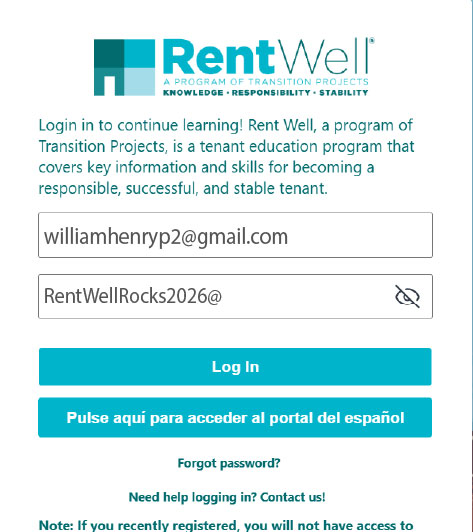 NOTE: The temporary password you received is not the same as the example password above.
 - Click Log In.

- Upon logging in, you will be asked to change your password. Enter the current temporary password first, then enter a new password that meets the criteria, and then enter it again. TIP: Be sure to save your new password for future use.
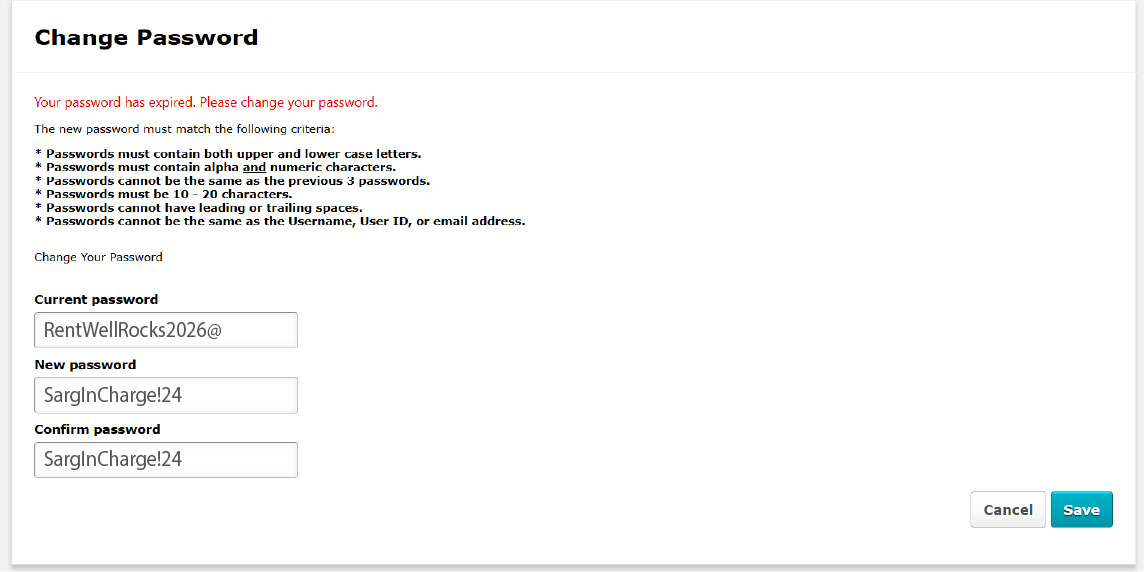
- Click Save

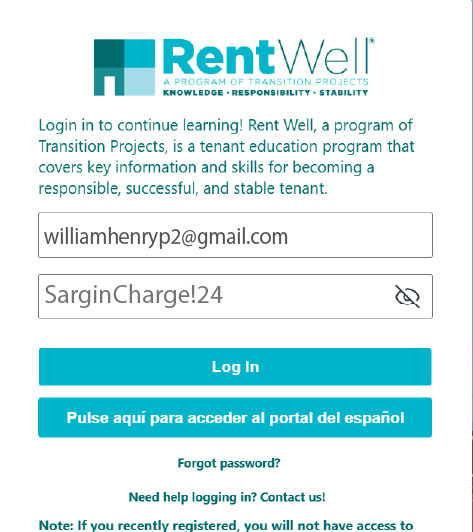
- You will then need to log in a second time using the new password you just created.
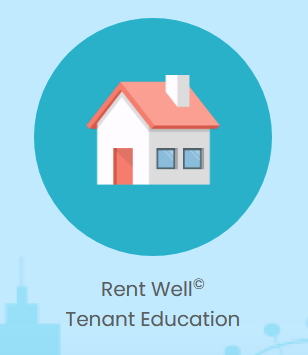
- Once logged in, scroll down and click on the Rent Well Tenant Education tile.
- On the next page, find Section 1 on the map and click “Launch” to begin.